
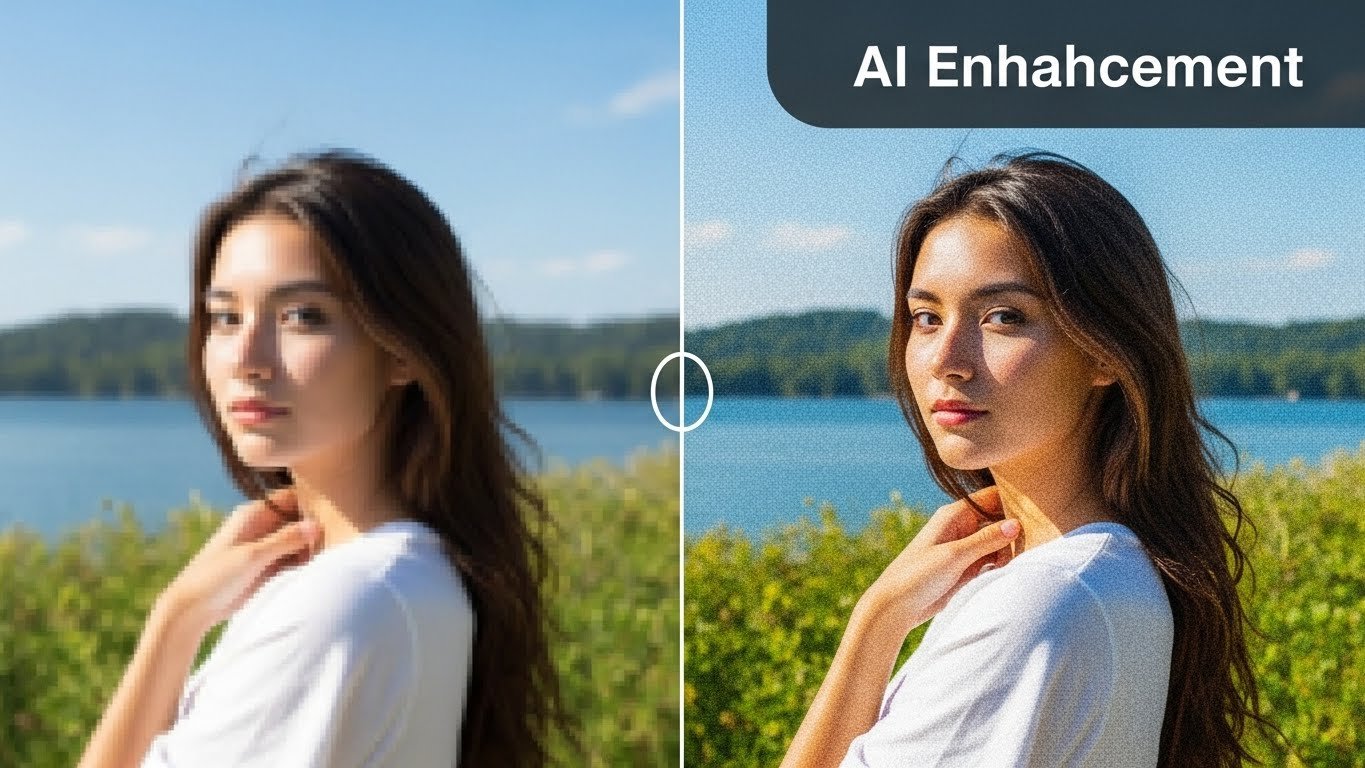
Last spring, I pulled out a shoebox of family photographs from my parents’ attic—decades of memories captured on film, then scanned at some point in the early 2000s with whatever consumer scanner was available. The images were precious: my grandmother’s 80th birthday party, my father as a young man in the military, childhood vacations to places that no longer exist as I remember them.
The photo quality was another matter entirely. Faded colors, visible grain, soft focus that wasn’t artistic but simply the limitation of the era’s equipment and amateur hands behind the camera. Traditional photo editing could help marginally, but I’d spent enough years in Photoshop to know that you can’t conjure detail that doesn’t exist in the original file.
Or at least, that used to be true.
Over the past two years, I’ve tested virtually every significant image enhancement tool on the market—some casually, others extensively for professional projects. What I’ve learned has fundamentally changed how I approach photo restoration, enhancement, and even my expectations for what’s possible with imperfect source material.
This guide reflects that hands-on experience. Not every tool works as advertised. Some excel in specific areas while failing in others. And the “best” option depends entirely on what you’re trying to accomplish, what you’re willing to spend, and how much quality actually matters for your particular use case.
Let me walk you through what’s genuinely working right now.
What AI Image Enhancement Actually Does (And Doesn’t Do)
Before diving into specific tools, it’s worth understanding the technology behind these applications, because realistic expectations matter.
Traditional photo editing is fundamentally subtractive or adjustive. You can remove elements, adjust what exists (brightness, contrast, color), or combine elements from multiple sources. But you cannot add genuine information that wasn’t captured.
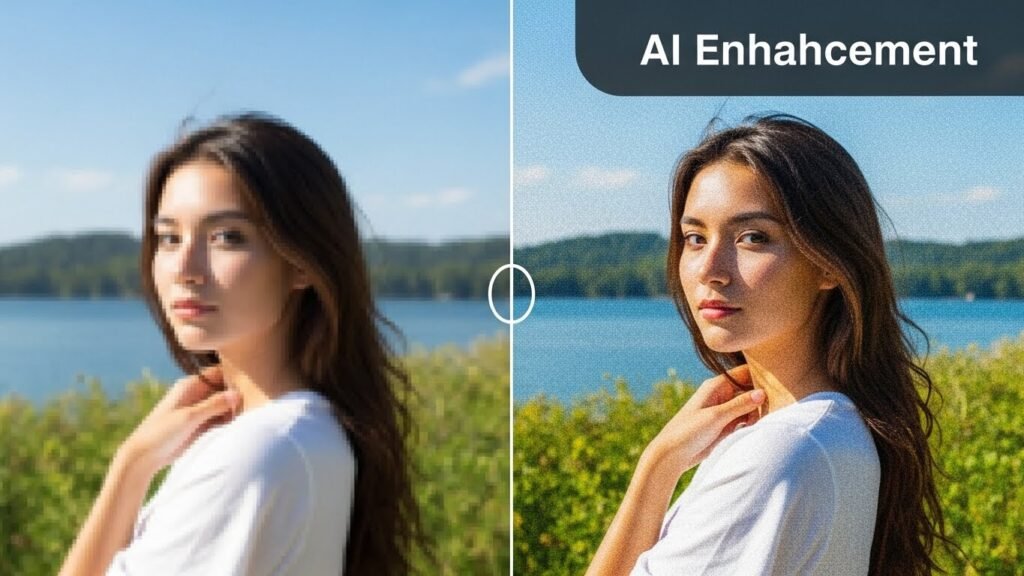
Intelligent enhancement tools work differently. They’re trained on massive datasets of images, learning patterns about what constitutes “quality”—sharp edges, natural textures, proper color relationships, consistent lighting. When you feed them a degraded image, they don’t just adjust what’s there. They predict what should be there based on learned patterns and essentially synthesize new pixel information.
This is simultaneously remarkable and important to understand clearly.
When an upscaling tool takes your 800×600 image and outputs a 3200×2400 version that looks genuinely detailed, it’s not recovering hidden information. It’s generating plausible detail based on pattern matching. The texture it adds to skin, the definition it creates in foliage, the sharpness it brings to text—these are sophisticated predictions, not archaeological discoveries of latent image data.
This distinction matters because:
- The output isn’t “real” in the documentary sense. For journalism, legal evidence, or scientific imaging, synthesized detail is ethically problematic.
- Results vary based on how well your image matches training patterns. Faces enhance beautifully because training datasets include enormous quantities of facial images. Unusual subjects may produce artifacts.
- Garbage in doesn’t always mean garbage out, but has limits. A completely blurred, badly exposed image with minimal information can’t be fully rescued. The tool needs something to work with.
With that foundation, let’s examine what’s actually available.
The Top-Tier Professional Options
Adobe Photoshop with Neural Filters
I’ve used Photoshop since version 5.5, back when layers felt revolutionary. The software has evolved through countless iterations, and the recent integration of neural processing capabilities represents perhaps the most significant leap in what the tool can accomplish.
The Neural Filters workspace in current Photoshop versions includes several enhancement features:
Super Resolution (available through Camera Raw) genuinely impressed me when Adobe introduced it. The algorithm quadruples image resolution while maintaining—and often improving—apparent detail. For photographers working with older camera files or needing to crop heavily, this feature alone justifies the subscription for many professionals.
I tested it extensively with medium format scans from the 1970s, files that were roughly 20 megapixels but with visible grain and softness. The enhanced versions printed beautifully at sizes that would have shown obvious degradation from the originals.
Photo Restoration neural filter handles colorization, scratch removal, and damage repair with results that range from surprisingly good to obviously artificial depending on the source material. Color restoration of black-and-white images works best with portraits and well-lit scenes; complex color relationships in unusual subjects often produce that telltale “colorized” look that experienced viewers recognize immediately.
Skin Smoothing and Portrait enhancement tools walk a fine line between improvement and the uncanny valley. Used subtly, they rival dedicated portrait software. Pushed too far, subjects start looking like video game characters.
The honest assessment: Photoshop’s intelligent features aren’t the absolute best at any single enhancement task, but the integration with a complete professional editing environment makes them incredibly practical. You can enhance, then immediately continue with traditional retouching, compositing, or color grading without export/import friction.
Pricing: $22.99/month for Photography plan (Photoshop + Lightroom) or higher for complete Creative Cloud.
Best for: Professional photographers and designers who need enhancement as part of a complete editing workflow.
Topaz Photo AI
If I had to choose a single dedicated tool for image quality enhancement, Topaz Photo AI would be my recommendation for most serious users. It’s not the cheapest option, and it has a learning curve, but the results consistently impress.
Topaz Labs has been developing enhancement algorithms for years, and Photo AI represents their unified approach—combining previously separate products (Gigapixel AI, DeNoise AI, Sharpen AI) into a single intelligent workflow.
What distinguishes Topaz is the autopilot approach combined with deep manual control. The software analyzes your image and suggests appropriate enhancements—noise reduction for high-ISO shots, sharpening for soft images, upscaling for small files. You can accept these suggestions or dive into granular adjustments.
Noise reduction is genuinely class-leading. I’ve processed concert photography shot at ISO 12800 that came out looking like it was captured two stops lower. The algorithm distinguishes between noise and legitimate texture remarkably well, preserving fabric detail, skin texture, and environmental elements while eliminating the grain.
Sharpening handles both motion blur and lens softness, with separate models for each. Motion blur recovery has obvious limits—severe blur defeats any tool—but moderate camera shake or subject movement shows remarkable improvement.
Upscaling produces results comparable to the best dedicated solutions. Faces receive special treatment with dedicated models that maintain natural appearance even at significant enlargement factors.
The honest assessment: Topaz Photo AI requires a capable computer. Processing times on older machines can be substantial, and the software taxes GPUs heavily. The perpetual license model (with optional upgrade pricing) makes long-term cost reasonable, but the upfront investment exceeds subscription alternatives.
Results occasionally exhibit a processed look that experienced photographers recognize—a certain smoothness or artificial clarity that differs from optical sharpness. Knowing when to dial back enhancement matters.
Pricing: $199 perpetual license (1 year of updates), $99/year for continued updates afterward.
Best for: Photographers who regularly work with challenging files—high ISO, older camera bodies, significant cropping, or archival scanning projects.
Luminar Neo
Skylum’s Luminar Neo positions itself as an all-in-one solution with substantial intelligent enhancement capabilities. For photographers who want enhancement integrated with broader editing without Adobe’s subscription model, it’s worth serious consideration.
The Enhance AI feature provides one-click improvement that adjusts exposure, contrast, and color intelligently. Unlike simple auto-adjust, it considers the image holistically—recognizing scenes and adjusting for appropriate mood.
Noiseless AI performs well against dedicated noise reduction, though I’d rank it slightly below Topaz for extreme cases. For typical noise levels, the difference is negligible.
Face AI and Skin AI tools handle portrait enhancement with impressive natural results. The software recognizes facial features and applies targeted improvements—slim face, enhance eyes, smooth skin—with results that look like skilled retouching rather than obvious filtering.
Upscaling capabilities were added recently and produce solid results, though the technology feels less mature than dedicated upscaling solutions.
The honest assessment: Luminar Neo offers remarkable value as an editing platform with enhancement capabilities. It won’t match specialized tools in every category, but the convenience of handling raw processing, creative editing, and enhancement in one application appeals to many photographers.
Performance issues plague some users, particularly on Windows systems with certain hardware configurations. Check compatibility carefully before purchase.
Pricing: $149 perpetual license for base software, additional features available via Extensions ($49 each or subscription bundles).
Best for: Amateur to prosumer photographers wanting a complete editing solution without subscription commitments.
Strong Alternatives Worth Considering
Adobe Lightroom (Desktop and Mobile)
Lightroom’s enhancement features sometimes get overlooked amid the Photoshop conversation, but the Enhance function in Lightroom Classic and the mobile Super Resolution deserve attention.
For photographers working primarily in Lightroom, the ability to enhance directly within the catalog workflow saves significant time. Lightroom’s Super Resolution produces results essentially identical to Camera Raw’s implementation in Photoshop.
The Denoise feature added recently represents a major upgrade. One click produces remarkable noise reduction while preserving detail—particularly impressive given how seamlessly it integrates into existing workflows.
Best for: Existing Lightroom users who want enhancement without leaving their primary editing environment.
ON1 Photo RAW
ON1 has been quietly building impressive intelligent features into their Lightroom alternative. NoNoise AI handles noise reduction well, and Resize AI provides capable upscaling.
The software runs locally (no cloud processing), appeals to privacy-conscious users, and offers perpetual licensing. Results sit slightly behind Topaz in direct comparisons but represent strong value.
Best for: Photographers seeking a comprehensive editing platform with capable enhancement, especially those preferring perpetual licenses and local processing.
DxO PhotoLab and PureRAW
DxO’s DeepPRIME and DeepPRIME XD technologies deserve mention for raw file processing. These algorithms handle noise reduction during raw conversion with results that sometimes exceed what post-processing tools achieve.
The approach differs philosophically—rather than fixing problems after the fact, DeepPRIME works with raw data to produce cleaner conversions from the start. For photographers working primarily with raw files, particularly from high-ISO situations, DxO merits serious evaluation.
Best for: Raw-focused photographers shooting frequently in challenging light.
Accessible Options for Casual Users and Mobile Editing
Remini
If you’ve seen viral social media posts showing dramatic before/after photo improvements, you’ve likely seen Remini’s work. This mobile app (with web version) has gained massive popularity for facial enhancement specifically.
Remini excels at improving heavily degraded portraits—old photographs, low-resolution images, blurry captures from distant camera phones. The face enhancement produces remarkable results, adding apparent detail and clarity to images that seem beyond rescue.
The honest assessment: Remini works its magic through aggressive prediction. The enhanced faces look better but represent significant synthesis. Fine for social sharing; problematic if documentary accuracy matters. The free tier limits usage; premium subscription removes restrictions.
Non-facial content enhancement lags behind specialized tools. Remini knows faces, but landscapes and objects receive less sophisticated treatment.
Pricing: Free tier with limitations; $9.99/week or $29.99/year for premium.
Best for: Casual users wanting to improve old family photos or enhance portrait shots for social media.
Pixlr
Pixlr has evolved from a basic browser-based editor into a capable platform with intelligent enhancement features. The Remove Noise and Sharpen AI tools provide solid basic enhancement for free.
For quick improvements without software installation, Pixlr handles common enhancement tasks adequately. Don’t expect professional results, but for social media or web use, output quality suffices.
Pricing: Free tier available; premium from $4.90/month.
Best for: Casual users needing quick, accessible enhancement without installation or significant investment.
Fotor
Another browser-based option, Fotor offers one-click enhancement, upscaling, and quality improvement tools. The interface prioritizes simplicity over control, making it accessible to complete beginners.
Results are acceptable for casual use. Serious photographers will want more control and better output quality, but Fotor fills a niche for quick improvements.
Pricing: Free tier with watermarks/limitations; premium from $8.99/month.
Best for: Complete beginners wanting simple, fast enhancement.
Specialized Enhancement Services
Let’s Enhance
This web-based service focuses specifically on upscaling and enhancement, offering different processing models for different content types (photos, digital art, illustrations).
The Smart Enhance mode analyzes images and applies appropriate processing automatically. Manual control allows selecting specific models and parameters for users who understand what they want.
Quality impresses for a web-based service. Processing happens on their servers, which raises privacy considerations for sensitive images but eliminates hardware requirements for users.
Pricing: Limited free tier; subscriptions from $9/month based on processing credits.
Best for: Users needing occasional high-quality upscaling without software investment.
VanceAI
VanceAI offers a suite of specialized enhancement tools—upscaling, denoising, sharpening, portrait enhancement—available both as web services and downloadable software.
The web interface provides accessible entry points for casual use, while the desktop software offers better performance for heavy users. Quality sits in the competitive middle tier—better than basic options, below top-tier desktop software.
Pricing: Free tier with limitations; subscriptions from $9.90/month.
Best for: Users wanting flexibility between web and desktop processing with middle-tier quality expectations.
Choosing the Right Tool: A Decision Framework
After testing these tools extensively, I’ve developed a framework for recommending options based on specific situations:
For Professional Photographers
Primary recommendation: Topaz Photo AI for dedicated enhancement, ideally paired with Adobe Photoshop or Lightroom for overall workflow.
Rationale: The quality difference at professional output standards—large prints, demanding clients, archival purposes—justifies the investment. Integration with existing professional tools matters.
For Serious Hobbyists
Primary recommendation: Luminar Neo for comprehensive editing with enhancement, or Topaz Photo AI if enhancement is the primary concern.
Rationale: Value matters when photography isn’t generating income. Luminar’s all-in-one approach reduces tool proliferation; Topaz offers best-in-class enhancement for those prioritizing that capability.
For Casual Photo Improvement
Primary recommendation: Remini for portraits/old family photos; Pixlr or Fotor for general enhancement.
Rationale: Investment should match usage. Free and low-cost options handle typical casual enhancement needs adequately.
For Occasional Professional Needs
Primary recommendation: Let’s Enhance or VanceAI web services.
Rationale: Pay-per-use models make sense when enhancement needs are infrequent but quality requirements are high.
For Mobile-First Users
Primary recommendation: Remini for portraits; Lightroom Mobile for general enhancement.
Rationale: These mobile apps offer capable enhancement without requiring desktop workflow.
Realistic Expectations and Limitations
Having praised these tools extensively, let me be direct about what they cannot do:
Severe Damage Cannot Be Fully Recovered
Images that are massively overexposed (blown highlights), deeply underexposed (solid shadows), or extremely motion-blurred contain insufficient information for even the best algorithms to work with. Enhancement can improve moderately damaged images dramatically but cannot perform miracles with files containing minimal data.
Synthesis Isn’t Recovery
When an upscaling tool adds detail to your grandmother’s face in a 1950s photograph, it’s generating plausible detail based on patterns learned from countless faces—not recovering the specific appearance of your grandmother. For family memories, this may be acceptable or even welcome. For forensic purposes, legal documentation, or scientific imaging, synthesized detail is misleading.
The “Processed Look” Exists
Experienced photographers can often identify enhanced images. There’s a certain smoothness, an artificial clarity, a too-perfect quality that differs from optical sharpness. For most uses, this doesn’t matter. For art photography or contexts where authenticity matters aesthetically, heavy enhancement may undermine intentions.
Hardware Matters
Local processing tools require substantial computing resources. Older machines produce frustrating performance with enhanced features. GPU capability significantly impacts processing speed. Cloud-based services eliminate this concern but introduce privacy considerations and subscription costs.
Learning Curves Vary
Simple tools limit control; powerful tools require learning. Topaz Photo AI offers extensive manual adjustment, but knowing when to apply what requires experience. Budget time for learning, not just purchasing.
Ethical Considerations for Enhancement
The power of these tools raises questions worth considering:
Documentary and Journalistic Integrity
Synthesizing detail in news photography or documentary work fundamentally misrepresents reality. Professional photojournalism organizations prohibit significant manipulation for good reason. Enhancement that adds information—rather than simply adjusting what exists—crosses ethical lines in these contexts.
Personal and Commercial Use
For personal photos, commercial product photography, creative work, and most business applications, enhancement represents tool use similar to traditional retouching. The ethical concerns are minimal when no deception about the image’s origins or accuracy is intended.
Restoration Versus Fabrication
Restoring old family photographs occupies interesting ethical territory. Adding color to black-and-white images creates something that never existed. Adding detail to faces synthesizes features. Most people embrace this for personal purposes, but it’s worth recognizing you’re creating enhanced versions of history rather than revealing hidden truths.
Disclosure Considerations
Should you tell people when images have been significantly enhanced? Context matters. Real estate photography with enhanced interiors? Probably disclose. Enhanced family reunion photo? Probably unnecessary. Enhanced portrait for a dating profile? Perhaps consider the implications.
Practical Workflow Tips
Having integrated these tools into professional workflows, some practical suggestions:
Enhance First, Edit Later
Apply enhancement to source files before creative editing when possible. This preserves maximum flexibility for subsequent adjustments and prevents enhancement from affecting creative choices you’ve already made.
Preserve Originals
Enhancement is non-reversible after saving. Maintain original files and work non-destructively. Your standards for enhancement may change; algorithms will improve; future needs may differ from current intentions.
Batch Carefully
Batch processing saves time but risks applying inappropriate enhancement uniformly. Preview batch results on representative samples before committing to full processing.
Know Your Output
A 4x upscale for billboard printing makes sense. The same upscale for Instagram posting wastes processing time and storage space. Match enhancement to actual output needs.
Compare Before Committing
Run significant images through multiple tools before committing to one approach. Results vary by image; the best tool for one photograph may not be best for the next.
Looking Ahead: What’s Coming
Based on current development trajectories, several trends seem likely:
Integration everywhere: Standalone enhancement tools will increasingly face competition from enhancement features built into editing platforms, operating systems, and camera software. Dedicated tools will need to maintain quality advantages to justify separate purchase.
Video enhancement acceleration: Still image enhancement is mature; video enhancement is emerging. Expect rapid development in enhancing video quality with similar technologies.
On-device processing: Mobile devices are incorporating neural processing capabilities. Enhancement that currently requires cloud services or desktop computers will increasingly happen on phones and tablets.
Smarter automation: Current tools require choosing enhancement types and adjusting parameters. Future tools will likely analyze images more comprehensively and apply multi-dimensional enhancement with minimal user input.
Quality ceiling rises: What seems remarkable today will become baseline. The gap between enhanced and “real” high-quality capture may narrow, but optical quality from excellent equipment will likely maintain advantages for demanding applications.
Final Thoughts: Tools in Service of Vision
These enhancement capabilities represent genuinely remarkable technology. Images I would have dismissed as unprintable five years ago now produce beautiful output. Recovery of family memories, rescue of problematic captures, and elevation of casual photography to presentable quality—all genuinely possible in ways they weren’t before.
But tools remain tools. The most sophisticated enhancement cannot create meaning in a meaningless image. It cannot add emotional resonance to a poorly conceived capture. It cannot replace learning to see light, compose thoughtfully, or time captures for decisive moments.
What these tools can do is remove technical barriers that prevented good images from reaching their potential. A meaningful photograph captured with limited equipment or in challenging conditions can now realize that meaning visually in ways previously impossible.
For that family shoebox from my parents’ attic, enhancement tools let me print photographs that capture genuine moments—my grandmother’s smile, my father’s youth, childhood places as they existed. The technical quality now matches the emotional significance.
That feels like technology fulfilling its promise: removing obstacles between intention and outcome, letting us share what matters with the quality it deserves.
Whatever tool you choose, I hope it serves that purpose for your images too.