
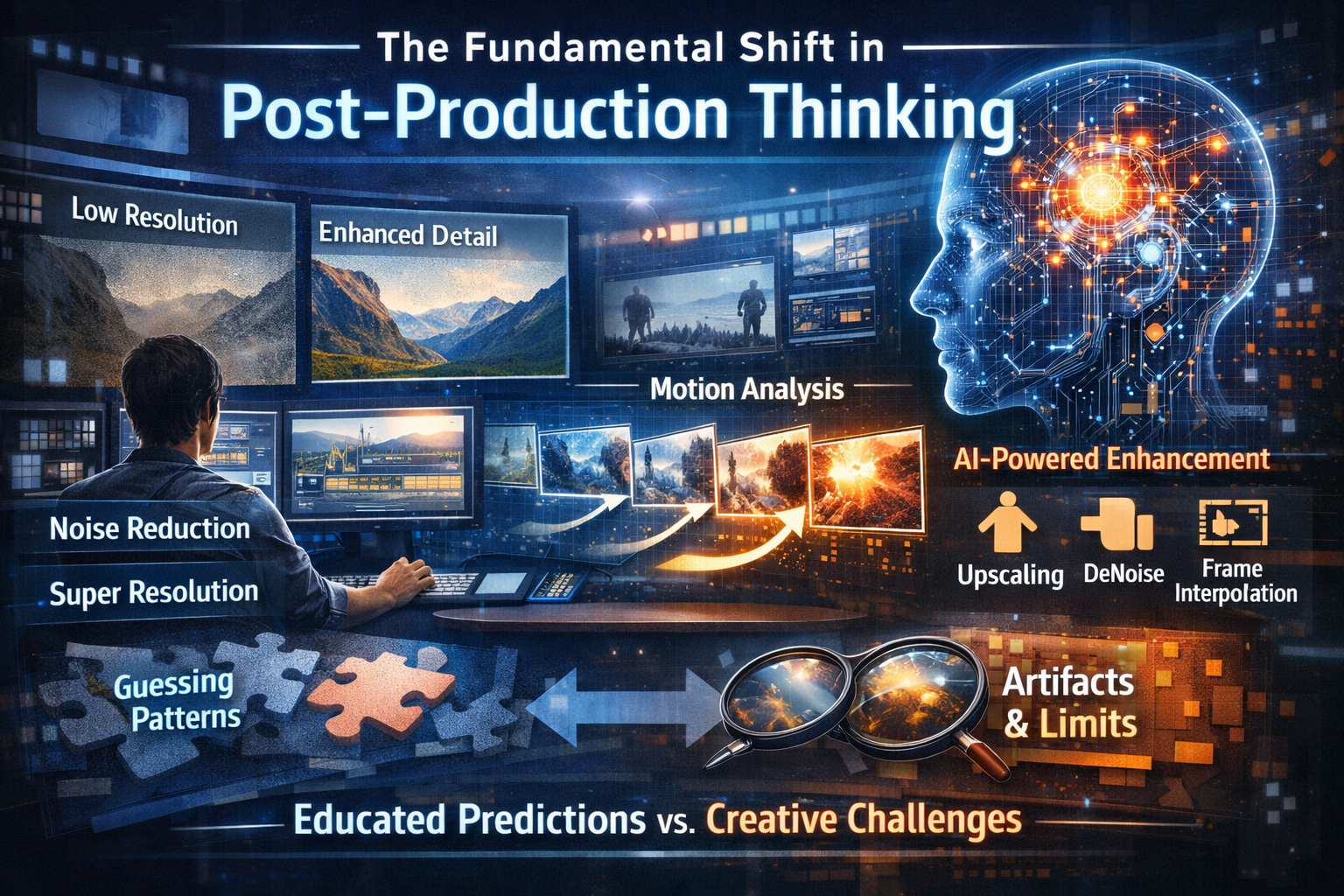
The footage arrived on my hard drive at 11 PM, three days before the documentary was due to the distributor. Shot on location in rural Vietnam during the 1990s, the original tapes had been digitized at standard definition—480p with visible compression artifacts, tape dropout, and that unmistakable VHS softness that makes modern audiences tune out.
Two years ago, I would have called the client with bad news. The footage was what it was. We could color correct, stabilize a bit, but fundamentally, you can’t add detail that doesn’t exist. That was the conventional wisdom anyway.
Today, I delivered that documentary with footage that looked like it could have been shot on a modern mirrorless camera. Not perfect, mind you—there are always tells if you know where to look—but absolutely broadcast-ready, with detail and clarity that simply wasn’t in the original files.
That transformation happened because of AI-powered post-production tools that have quietly revolutionized what’s possible in video enhancement. And after spending the past three years integrating these tools into my professional workflow, I’ve developed a clear sense of what works, what doesn’t, and how to get the most from this technology.
The Fundamental Shift in Post-Production Thinking
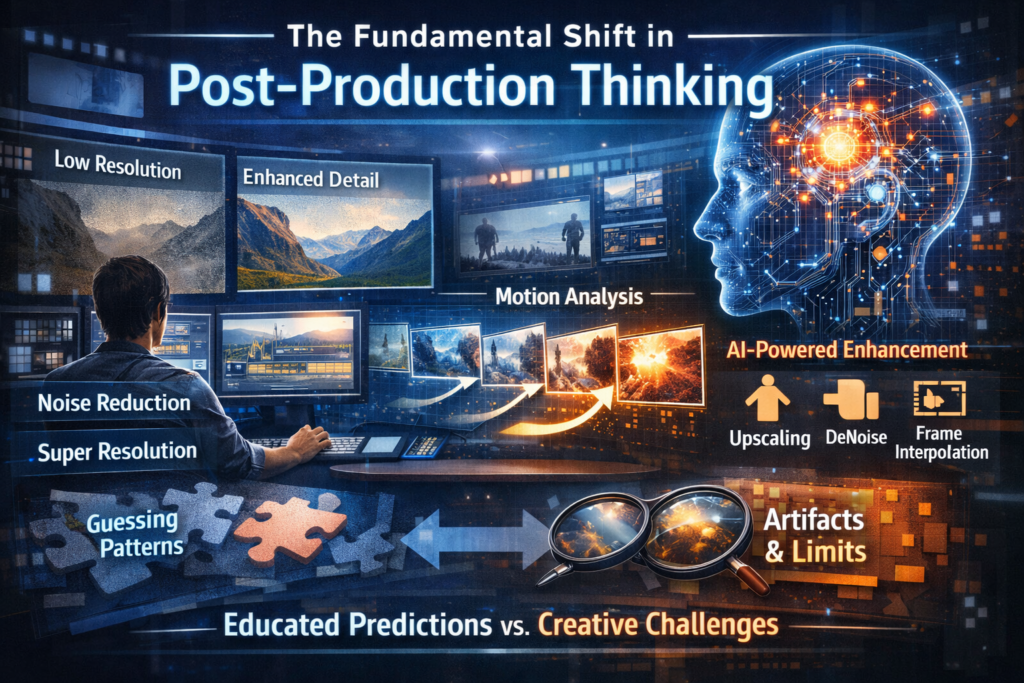
For decades, video post-production operated on a basic principle: you could manipulate what existed in the footage, but you couldn’t create what wasn’t there. Sharpening could make edges more defined, but it couldn’t add actual resolution. Noise reduction could soften grain, but at the cost of detail. These were trade-offs, not transformations.
AI has changed that equation fundamentally.
Modern machine learning models trained on millions of high-quality images and video frames can now make educated predictions about what higher-resolution detail should look like. They can distinguish between noise and fine detail in ways that fixed algorithms never could. They can analyze motion across frames to create smooth interpolation that optical flow techniques couldn’t achieve.
This isn’t magic—and I want to be clear about that upfront. These tools are making sophisticated guesses based on pattern recognition. Sometimes those guesses are remarkably accurate. Sometimes they introduce artifacts that require manual correction or creative workarounds. Understanding both the capabilities and limitations is essential for professional work.
Upscaling and Resolution Enhancement: The Biggest Game-Changer
If I had to identify the single most impactful AI enhancement for video post-production, resolution upscaling would be the clear winner. The ability to take standard definition footage and create genuinely watchable 4K output has practical implications across the industry.
How AI Upscaling Actually Works
Traditional upscaling algorithms like bicubic or Lanczos interpolation work by averaging neighboring pixels to create new ones. The result is inevitably softer than native high-resolution footage because you’re essentially spreading existing information across more pixels without adding new detail.
AI upscaling takes a fundamentally different approach. Neural networks trained on high-resolution source material learn patterns—how skin texture typically looks at various scales, how fabric folds create shadows, how text edges should appear when sharp. When processing low-resolution input, the AI predicts what higher-resolution detail should exist based on these learned patterns.
The results can be genuinely impressive. Fine text becomes readable. Facial features gain definition that wasn’t visible in the source. Environmental details emerge from muddy backgrounds.
Tools That Deliver Real Results
Topaz Video AI has become my workhorse for upscaling projects. It’s not cheap—around $300 for a perpetual license—but for anyone doing regular enhancement work, it pays for itself quickly. The software offers multiple AI models optimized for different source types: one for progressive footage, another for interlaced content, specialized models for animation, and options tuned for high-noise sources.
What I appreciate most is the preview system. You can process a few seconds of footage with different models and settings before committing to a full render. Given that a single AI model can produce dramatically different results than another on the same footage, this saves enormous time.
For a recent project restoring concert footage from 2003, I tested five different model combinations before finding one that handled the challenging mix of low light, rapid motion, and compression artifacts. The winning configuration wasn’t what I would have predicted, which reinforces why testing matters.
DaVinci Resolve’s Super Scale offers a different approach—it’s integrated directly into a professional editing and color grading environment. The quality is solid, though I find it slightly less impressive than dedicated upscaling tools for challenging source material. The workflow advantage is significant, however. You can upscale clips within your existing project rather than round-tripping to external software.
Adobe Premiere Pro has been adding AI enhancement features progressively, including Super Resolution in the latest versions. It’s convenient for editors already in the Adobe ecosystem, though I’ve found the results somewhat conservative compared to specialized tools.
Realistic Expectations for Upscaling
Here’s what clients often don’t understand: AI upscaling works best on footage that was originally well-exposed, properly focused, and cleanly captured at its native resolution. The worse your source quality, the more the AI has to “invent,” and invention means risk.
Footage that was already soft when captured—say, shot with a cheap lens or with missed focus—won’t suddenly become sharp. The AI can add apparent detail, but it’s essentially creating texture that looks plausible rather than revealing hidden information.
Heavily compressed footage presents particular challenges. When compression has already destroyed fine detail, the AI is reconstructing based on artifacts rather than actual image information. Results can look good from viewing distance but fall apart under close examination.
I always tell clients: AI upscaling can make 720p footage look good on a 4K display. It can make SD footage acceptable for modern streaming. It cannot make your smartphone video look like it was shot on a cinema camera. Managing expectations prevents disappointment.
Noise Reduction and Denoising: Saving Low-Light Footage
Every videographer has been there—the venue was darker than expected, the ISO had to climb beyond comfortable limits, and the resulting footage looks like it was shot through a sandstorm. Traditional noise reduction could help, but aggressive settings turned faces into waxy masks and backgrounds into watercolor paintings.
AI-powered denoising represents a genuine breakthrough for this problem.
The Intelligence Behind Modern Denoising
Classical noise reduction algorithms struggled with a fundamental challenge: distinguishing random noise from fine detail. Both appear as small-scale pixel variations. Aggressive noise reduction eliminates both; conservative settings leave visible grain.
Machine learning approaches handle this differently. Trained on pairs of noisy and clean images, AI denoisers learn contextual patterns. They understand that the speckles on a face are probably noise while the similar-sized variations in hair texture are probably real detail. This contextual understanding enables selective noise removal that preserves genuine image information.
Tools Worth Your Attention
Topaz Video AI again performs excellently here, with dedicated noise reduction models that can be applied independently or combined with upscaling. The “Nyx” model specifically targets high-ISO noise and has saved more than a few projects in my experience.
Neat Video remains a professional standard, and their recent versions incorporate machine learning alongside their traditional algorithms. The integration with major editing platforms is seamless—it works as a plugin directly in Premiere, Resolve, Final Cut, and others.
DaVinci Resolve’s AI-powered noise reduction in the Studio version deserves mention. The temporal and spatial noise reduction with AI enhancement handles motion intelligently, avoiding the smearing artifacts that plagued older temporal methods.
Workflow Considerations for Denoising
I’ve learned through trial and error that denoising should typically happen before other corrections in your pipeline. Color grading noise-reduced footage produces cleaner results than trying to denoise footage after aggressive grading has amplified underlying noise.
One exception: if you’re doing significant exposure correction, noise patterns can shift. I sometimes do a rough exposure adjustment, then denoise, then fine-tune grading afterward.
Processing time remains a consideration. AI denoising is computationally intensive. A ten-minute clip can take hours to process depending on your hardware and chosen model. Plan accordingly, especially for deadline-sensitive projects.
Frame Rate Conversion and Interpolation: Creating Smooth Motion
The ability to convert frame rates intelligently—turning 24fps footage into smooth 60fps, or creating dramatic slow motion from standard-speed clips—has transformed what’s possible in post-production.
Beyond Simple Frame Duplication
Traditional frame rate conversion either duplicated frames (creating stuttery motion) or used optical flow to generate intermediate frames (often producing visible warping around moving objects). Neither was truly satisfactory for professional work.
AI frame interpolation analyzes motion across multiple frames to predict what intermediate frames should look like. The results can be remarkably smooth, handling complex motion that would have created obvious artifacts with optical flow techniques.
Where This Gets Practical
I used AI frame interpolation recently for a music video where the director wanted a slow-motion sequence but the footage was shot at 24fps. Traditional interpretation would have resulted in choppy playback. AI interpolation created genuinely smooth 120fps output that, honestly, looked nearly as good as footage shot at native high frame rate.
Topaz Video AI’s Chronos model handles this well, with newer versions improving edge handling around moving objects.
NVIDIA’s Optical Flow in DaVinci Resolve uses RTX GPU capabilities to accelerate AI interpolation, and the quality has improved dramatically in recent versions.
Flowframes offers a free option using RIFE (Real-Time Intermediate Flow Estimation) that produces impressive results for those without budget for commercial tools.
The Soap Opera Effect Caveat
Frame interpolation can give footage an overly smooth appearance that some viewers find unnatural—the infamous “soap opera effect” associated with TV motion smoothing. For narrative content that relies on the traditional film aesthetic of 24fps, aggressive interpolation may be inappropriate.
I typically use interpolation selectively: for slow-motion sequences where smoothness is desired, for technical requirements like converting 24fps to 30fps for broadcast, or for enhancing old footage where original temporal resolution was limited. Applying it universally to all footage would change the aesthetic in ways many viewers find jarring.
Color Enhancement and Intelligent Grading
AI has entered the color grading space in ways that augment rather than replace colorist expertise—at least for now.
Automatic Color Matching
One genuinely useful application is matching color between shots. Anyone who’s edited a multi-camera interview knows the pain of cameras with slightly different color science or varying white balance settings creating a mismatch every time you cut.
DaVinci Resolve’s Color Match feature uses AI to analyze skin tones and overall color relationships, automatically adjusting clips to create consistent looks across mixed sources. It’s not perfect—human colorist judgment still matters—but it provides an excellent starting point that saves hours of manual matching.
Premiere Pro’s color match offers similar functionality within the Adobe ecosystem.
HDR Conversion and Enhancement
Converting SDR footage to HDR has traditionally been challenging, requiring careful manual work to expand dynamic range without introducing artifacts. AI tools are making this more accessible.
I’ve experimented with several approaches for SDR-to-HDR conversion and found the results mixed but improving. The technology works best on well-exposed source material where highlight and shadow detail exist but aren’t being fully utilized in the SDR grade.
Crushed blacks or clipped highlights can’t be recovered by AI any more than by traditional tools—the information simply doesn’t exist. But where original capture preserved dynamic range, AI can intelligently expand it for HDR delivery.
Stabilization That Actually Works
Video stabilization is another area where AI has enabled capabilities that seemed impossible just a few years ago.
Traditional stabilization worked by tracking distinct points and applying corrective transforms. This failed when tracking points moved unpredictably, when footage was too shaky to identify stable references, or when perspective shifts couldn’t be corrected with simple transforms.
AI Stabilization Approaches
Modern AI stabilization analyzes footage holistically rather than tracking individual points. Machine learning models understand how camera motion should look and can separate intentional movement from unwanted shake.
DaVinci Resolve’s AI stabilization in version 18 and later has impressed me with its ability to handle difficult footage. I stabilized handheld interview footage recently that would have been unusable with traditional methods—the AI identified the subject and stabilized around their position rather than hunting for geometric features.
Adobe’s warp stabilizer has incorporated AI improvements that handle walking shots and more complex motion better than previous versions.
The professional standout remains Gyroflow, which combines gyroscopic data from camera sensors with AI-enhanced processing. For action footage where cameras record motion data, the results can be nearly gimbal-like from handheld footage.
Object Removal and Cleanup
Removing unwanted elements from video—boom mics that dipped into frame, modern elements in period pieces, distracting background objects—traditionally required painstaking frame-by-frame work.
AI-powered content-aware fill has changed this significantly.
Practical Applications
Runway ML’s Inpainting feature allows you to mask objects across a video sequence and have AI intelligently fill the area based on surrounding content. I used this recently to remove a visible crew member from the edge of frame in documentary footage. What would have been hours of manual cleanup took about twenty minutes of supervised AI processing.
Adobe After Effects’ Content-Aware Fill uses AI to analyze surrounding frames and fill selected regions. For relatively simple removals—a consistent background, limited motion complexity—it works remarkably well.
DaVinci Resolve’s Object Removal tools have improved substantially, combining AI tracking with intelligent fill capabilities.
Managing Expectations for Cleanup Work
These tools work best when:
- The object being removed is relatively small in frame
- The background behind the object is visible in nearby frames
- Camera and subject motion is relatively smooth
- The removal area doesn’t involve complex interactions
Removing a person walking through a complex, moving scene remains challenging. The AI may struggle with accurate tracking, and fill quality degrades when there’s limited information about what should appear behind the removed object.
I still find myself doing traditional cleanup work for complex removals, but AI tools handle simpler tasks that previously consumed disproportionate time.
Audio Enhancement: The Often-Overlooked Dimension
Video quality isn’t just visual, and AI has transformed audio enhancement alongside image processing.
Noise Reduction for Dialogue
iZotope RX has led this space for years, and recent versions incorporate machine learning for dialogue isolation and noise removal. The ability to extract clean dialogue from challenging recordings—traffic noise, room echo, equipment hum—has saved numerous productions.
Adobe Podcast’s “Enhance Speech” feature, now integrated into Premiere Pro workflows, provides one-click processing that can dramatically improve problematic audio. The results won’t match dedicated audio post-production, but for quick turnarounds or less critical applications, it’s genuinely useful.
Music and Sound Separation
AI can now separate audio elements—extracting dialogue from background music, isolating instruments, removing vocals from songs. Descript’s audio tools and iZotope’s Music Rebalance enable corrections that previously required access to original multi-track recordings.
Building a Practical AI Enhancement Workflow
After integrating these tools across dozens of projects, I’ve developed a workflow that maximizes efficiency while maintaining quality.
Assessment First
Before applying any AI enhancement, I analyze the source material carefully. What are the primary issues? Is resolution the limiting factor, or noise, or both? Is the footage interlaced? What’s the target delivery format?
This assessment determines which tools to deploy and in what order. Throwing every enhancement at footage rarely produces optimal results—instead, it creates processing time and potential for AI artifacts to compound.
Prioritize Based on Impact
For most restoration projects, my priority order is:
- Denoising (if noise is severe)
- Deinterlacing (if applicable)
- Upscaling
- Stabilization
- Frame interpolation (if needed)
- Color enhancement
Each step should complete before the next begins, as AI tools work best on clean input rather than trying to process multiple issues simultaneously.
Test Before Committing
I cannot overstate this: always test on representative clips before processing entire projects. Render a few challenging sections with your chosen settings and review carefully. Look for:
- Edge artifacts around high-contrast boundaries
- Face abnormalities (AI can sometimes distort facial features subtly)
- Texture inconsistencies
- Temporal artifacts (flickering, warping between frames)
- Motion handling in action sequences
The ten minutes spent testing saves hours of reprocessing when you discover problems late.
Maintain Original Files
Never overwrite original footage with AI-enhanced versions. Beyond basic backup hygiene, you may need to return to original files if enhancement settings prove wrong, if new AI models become available, or if different delivery formats require different processing.
I maintain a clear file structure: original source, intermediate processed versions, and final enhanced output. Storage is cheap; re-acquiring footage often isn’t possible.
The Hardware Reality
AI video processing is computationally intensive. Processing speed depends heavily on your hardware configuration, and inadequate hardware can make these tools practically unusable.
GPU Matters Most
Most AI video tools leverage GPU acceleration. NVIDIA GPUs with CUDA cores perform best for most software. RTX series cards with dedicated Tensor cores provide substantial advantages for AI workloads.
My current workstation runs an RTX 4080, which processes 4K upscaling at roughly 2-3 frames per second depending on the model. An older GTX 1070 would take 4-5 times as long. For regular AI enhancement work, GPU investment pays for itself in time saved.
Memory Requirements
AI models require substantial VRAM. Running out of GPU memory forces processing to fall back to system RAM or fail entirely. For 4K work, 12GB VRAM is comfortable; 8GB is workable but limiting. For 8K output, you’ll want 16GB or more.
System RAM matters too—32GB minimum for professional work, 64GB preferable when handling longer sequences.
Storage Speed
AI processing often involves heavy read/write operations. Fast NVMe storage for working files makes a noticeable difference in overall processing time compared to mechanical drives or slower SSDs.
Ethical Considerations Worth Discussing
Any technology that can modify video raises ethical questions worth considering seriously.
Authenticity in Documentary Work
When AI adds detail that wasn’t in original footage, questions arise about authenticity. Is upscaled historical footage “real”? For archival and documentary purposes, I believe disclosure matters. Viewers should understand that enhancement has occurred.
This doesn’t mean AI enhancement is inappropriate—it may be the only way to make important historical footage viewable for modern audiences. But transparency about the process maintains trust.
Deepfakes and Face Modification
The same technology that improves facial detail in legitimate enhancement can also enable face replacement and manipulation. The ethical line between restoration and fabrication isn’t always clear.
I maintain a personal policy: I don’t use AI tools to create footage of people doing or saying things they didn’t actually do or say, regardless of whether it’s technically possible. Commercial pressures sometimes push against this boundary, and resisting requires conscious commitment.
Evidence and Legal Implications
AI-enhanced video enters murky territory for evidentiary purposes. Courts and legal systems are still developing frameworks for handling enhanced footage. For any project with potential legal implications, preserving original unmodified footage alongside enhanced versions isn’t just good practice—it may be legally necessary.
Looking Ahead: Where This Technology Is Going
Having watched AI enhancement evolve rapidly over recent years, I’ll offer some thoughts on likely near-term developments.
Real-Time Processing
Currently, AI enhancement requires offline rendering. Processing happens faster than real-time, but you’re still waiting. Dedicated hardware encoders and more efficient models will likely enable real-time AI enhancement, making these tools applicable for live production.
Better Integration
Current workflows often require round-tripping between editing software and specialized enhancement tools. Tighter integration—AI enhancement available directly within timeline editing—will improve efficiency substantially. We’re already seeing movement in this direction with DaVinci Resolve and Adobe’s implementations.
Model Specialization
General-purpose AI enhancement models work reasonably well across diverse footage types. Specialized models trained on specific content—sports, animation, specific camera systems—will likely deliver better results for targeted applications.
Generative Enhancement
Current AI enhancement still works primarily with information present in source material. Truly generative models that can create plausible new content—extending frames, generating additional angles, filling extended gaps—are emerging. The creative and ethical implications are substantial.
Final Thoughts: Tool, Not Magic
After three years of professional use, my perspective on AI video enhancement is optimistic but grounded. These tools solve real problems that previously required enormous manual effort or simply couldn’t be addressed. They’ve enabled projects that otherwise wouldn’t have been viable.
But they’re tools, not magic. They require skilled operators who understand their capabilities and limitations. They produce best results when applied thoughtfully to appropriate source material. They can introduce artifacts that require careful quality control to identify and address.
The editor’s role isn’t diminished by AI enhancement—it’s evolved. We now manage a more powerful toolkit that requires new skills to use effectively. Understanding how these tools work, when to apply them, and how to evaluate results has become essential knowledge for modern post-production professionals.
For anyone working in video production today, investing time to learn these tools isn’t optional. They’ve become fundamental to competitive work, and their capabilities will only expand. The learning curve is worthwhile.
The footage from Vietnam I mentioned at the beginning? It’s now permanently archived in high-quality format, preserving moments from a significant historical period in a form that future audiences can actually watch. That preservation wouldn’t have been possible five years ago.
That’s the real value of these tools—not just making video look better, but enabling stories to be told that couldn’t be told otherwise. And that makes the technical complexity worthwhile.