
I’ve been editing video professionally for twelve years. Started on Final Cut Pro 7, transitioned through the Adobe ecosystem, dabbled in DaVinci Resolve, and somewhere along the way developed the kind of muscle memory where keyboard shortcuts feel like extensions of my fingers. When AI editing tools started emerging a few years ago, my initial reaction was defensive. I’d spent thousands of hours mastering this craft. Was software really going to automate it away?
Then I actually started using these tools.
My perspective shifted completely—not because AI replaced my skills, but because it eliminated the tedious parts of editing that consumed hours of my week. The repetitive tasks. The mindless cuts. The endless color matching. The transcript-based searching through hours of footage. AI handles the grunt work now, freeing me to focus on creative decisions that actually require human judgment.
Last year, I tracked my editing time across comparable projects. Jobs that previously took 15-20 hours now take 8-10. That’s not a minor efficiency gain—it fundamentally changed my business economics and creative capacity.
After testing virtually every AI video editing tool on the market, I want to share what actually works, what’s overhyped, and how to integrate these tools into professional workflows.
Why AI Video Editing Has Reached an Inflection Point
The technology has matured dramatically in the past two years. Early AI editing tools felt gimmicky—auto-edit features that produced unusable results, effects that looked obviously artificial, transcription that mangled every other word. Those limitations largely disappeared.
Several technological advances converged to make this possible:
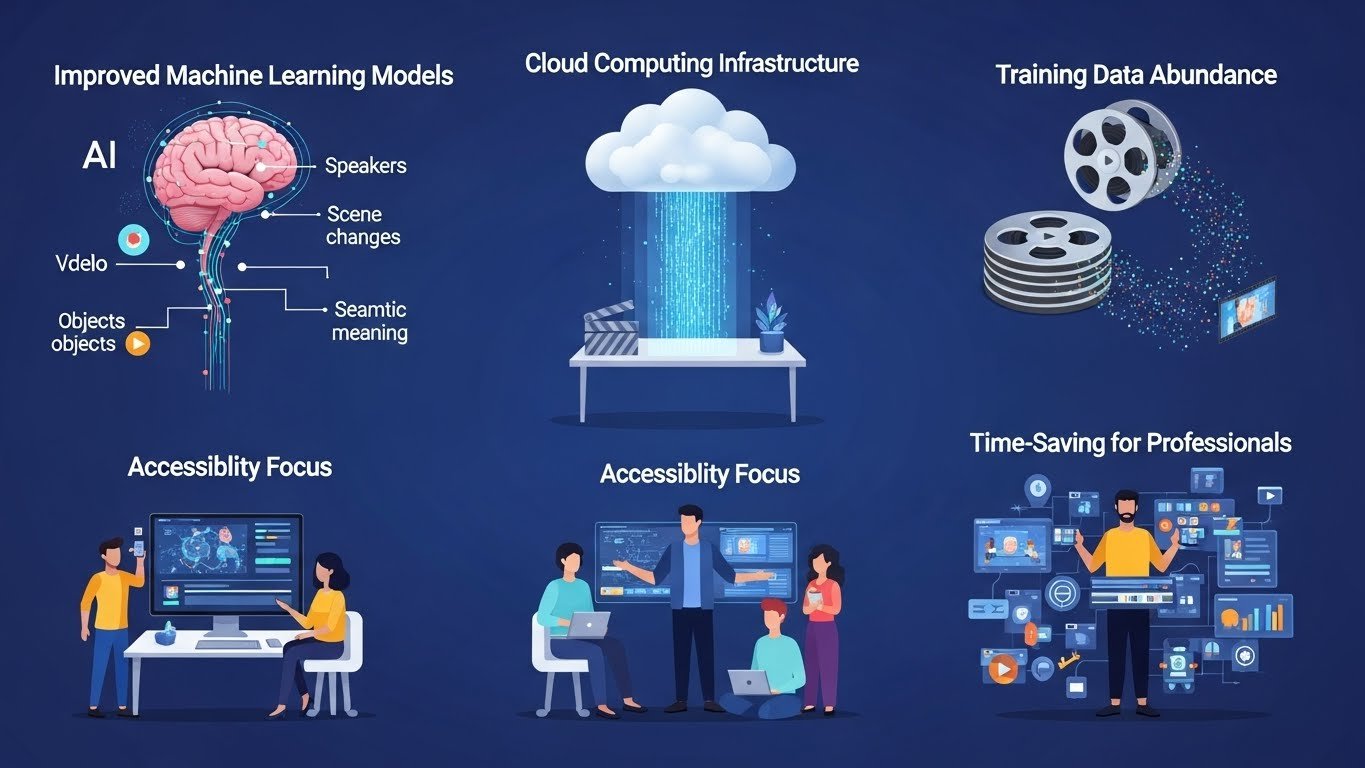
Improved machine learning models now understand video content contextually. They can identify speakers, detect scene changes, recognize objects, and understand the semantic meaning of footage—not just analyze pixels.
Cloud computing infrastructure enables processing that would overwhelm local hardware. Complex AI operations that might take hours on a powerful workstation complete in minutes through cloud processing.
Training data abundance from millions of hours of video content taught these systems what good editing looks like. They learned pacing, transitions, color grading aesthetics, and compositional preferences from observing professional work.
Accessibility focus from developers who recognized that professional editors weren’t the only market. Content creators, marketers, educators, and businesses need video but lack traditional editing skills. AI bridges that gap.
The result: tools that genuinely save time for professionals while making video editing accessible to non-editors.
Understanding AI Video Editing Categories
Before diving into specific tools, understanding the different categories helps match solutions to needs.
Automated Editing and Assembly
These tools analyze raw footage and automatically create edited sequences. They identify the best takes, remove silences and filler words, detect scene changes, and assemble coherent timelines from hours of raw material.
Most useful for: talking head content, interviews, podcasts, educational videos, social media clips.
AI-Powered Enhancement
Tools focused on improving footage quality—upscaling resolution, removing noise, stabilizing shaky video, enhancing audio, color correction. They don’t edit creatively but elevate technical quality.
Most useful for: archival footage restoration, mobile phone footage improvement, low-light correction, audio cleanup.
Text-Based Editing
Revolutionary approach where you edit video by editing a transcript. Delete words from the transcript and the corresponding video disappears. Rearrange paragraphs and the video resequences automatically.
Most useful for: interview editing, podcast production, documentary work, any dialogue-heavy content.
Content Repurposing
Tools that automatically extract clips from long-form content, identify viral-worthy moments, and reformat video for different platforms. They transform one piece of content into many.
Most useful for: social media managers, content repurposing, podcast clip extraction, highlight reels.
Generative AI Features
The newest category—tools that generate video elements that don’t exist. AI avatars, synthetic voices, background replacement, object removal, video extension. Controversial but increasingly capable.
Most useful for: marketing videos, training content, localization, specific creative applications.
The Best AI Video Editing Tools in 2026
Descript: The Game-Changer for Dialogue-Based Content
If you edit any content involving spoken word—podcasts, interviews, talking head videos, educational content—Descript has probably changed your workflow already. If it hasn’t, you’re working harder than necessary.
Descript’s core innovation is treating video editing like document editing. Import your footage, and it automatically transcribes everything. Then you edit by manipulating the transcript. See an “um” in the transcript? Delete it. The video cut happens automatically. Want to rearrange sections? Drag paragraphs around. Need to remove a tangent? Highlight and delete.
This sounds simple, but the implications are profound. Editing a one-hour interview used to mean scrubbing through the entire timeline, marking selects, making cuts, and constantly losing track of what was said where. Now I read through the transcript, make my selections, and the edit essentially assembles itself.
Overdub deserves special mention—it’s Descript’s synthetic voice feature. Train it on your voice (requires about 10 minutes of sample audio), and you can type new words that the system speaks in your voice. Made a mistake during recording? Type the correction and Overdub generates the audio. Forgot to mention something? Add it after the fact.
The ethical implications of voice cloning are significant, and I’ll address those later. But the practical utility for fixing minor recording errors is undeniable.
Filler word removal works automatically. One click removes every “um,” “uh,” “like,” and “you know” from your video. The feature is genuinely magical for cleaning up natural speech.
Studio Sound enhances audio quality, reducing background noise and improving vocal clarity. It’s not perfect for severely compromised audio, but it salvages many recordings that would otherwise require re-recording.
Pricing starts at $12/month for basic features, with professional plans at $24/month. The free tier is surprisingly generous for testing.
Where Descript struggles: Highly visual content, music videos, narrative filmmaking, and anything where dialogue isn’t central. The text-based paradigm works beautifully for its intended use cases but doesn’t translate to all video types. The desktop application can also feel sluggish with very long projects.
Best for: Podcasters, YouTubers, course creators, interviewers, documentary editors, anyone editing dialogue-heavy content.
Adobe Premiere Pro with Adobe Sensei: Professional Power Enhanced
Adobe hasn’t released a dedicated AI editing tool—instead, they’ve integrated AI capabilities throughout Premiere Pro and the broader Creative Cloud ecosystem. For editors already in the Adobe workflow, these features add substantial value without requiring new software.
Auto Reframe intelligently recrops footage for different aspect ratios. Feed it a 16:9 video and request 9:16 for TikTok, and the AI tracks subjects and keeps them centered across the new framing. It’s not perfect—complex scenes with multiple subjects sometimes require manual adjustment—but it handles 80% of reframing automatically.
Speech to Text transcription built directly into Premiere enables text-based editing within the familiar timeline interface. Search for any word across your entire project, jump directly to that moment, and use transcripts to guide your editing decisions.
Morph Cut uses AI to smooth jump cuts in interview footage, creating the appearance of continuous speech even when you’ve removed sections. The technology analyzes facial movements and synthesizes transitions that hide edits. Results range from seamless to uncanny valley depending on the footage.
Scene Edit Detection analyzes existing edited videos and places markers at every cut point. Essential for reverse-engineering edits, conforming footage, or understanding the structure of reference material.
Audio enhancement tools including noise reduction, room tone matching, and speech clarity improvements have become increasingly sophisticated. The podcast and dialogue workflows in Premiere now rival dedicated audio software.
Color matching uses AI to analyze reference images or clips and apply similar color grades automatically. Point at a frame you like and the system adjusts your footage to match the look.
Pricing requires Creative Cloud subscription, typically $22.99/month for Premiere alone or $59.99/month for the complete Creative Cloud. Expensive for casual users but standard for professionals.
Limitations: AI features are scattered throughout the application rather than unified in a coherent workflow. New users won’t discover them intuitively. Processing can be slow, especially for Speech to Text on long projects. And because Premiere is fundamentally a traditional NLE with AI additions rather than an AI-first tool, the integration sometimes feels bolted-on rather than seamless.
Best for: Professional editors already using Premiere who want AI enhancement, broadcast workflows, complex multi-track projects, integration with After Effects and other Adobe tools.
DaVinci Resolve with Neural Engine: The Free Powerhouse
Blackmagic Design’s DaVinci Resolve offers arguably the most sophisticated AI features available in any editing platform—and the base version is completely free.
The Neural Engine powers features that seem almost magical:
Magic Mask tracks subjects with remarkable precision, creating masks that follow people, objects, or features through moving footage. Want to isolate a person and change the background color? Magic Mask creates the selection automatically. Previous approaches required hours of rotoscoping; now it’s nearly instant.
Face Refinement enables subtle adjustments to facial features in footage—softening skin, brightening eyes, adding subtle reshaping. Used ethically, it’s a more sophisticated version of beauty filters. The potential for misuse is obvious and worth considering.
Object Removal erases unwanted elements from footage by analyzing the surrounding context and filling the gap. Early versions had significant limitations, but recent improvements handle many common scenarios effectively.
Speed Warp uses AI to create smooth slow-motion from footage shot at normal frame rates. Rather than simply duplicating frames (which creates stuttering), the system generates intermediate frames that didn’t exist in the original. The results range from impressive to uncanny depending on scene complexity.
Voice Isolation extracts dialogue from noisy environments, suppressing background sounds while preserving speech. It’s remarkably effective for salvaging problematic audio.
Super Scale upscales footage to higher resolutions using AI rather than simple interpolation. Four-times upscaling (1080p to 4K, for example) produces results that sometimes rival native resolution footage.
The free version includes most features. DaVinci Resolve Studio ($295 one-time purchase) adds some advanced AI capabilities plus additional professional features. The value proposition is exceptional either way.
Challenges with Resolve: The learning curve is significant. Resolve is a professional-grade application with depth that takes months to fully explore. The interface can feel overwhelming for beginners. Hardware requirements for smooth AI processing are substantial—a modern GPU with significant VRAM makes an enormous difference.
Best for: Colorists, visual effects work, filmmakers wanting Hollywood-grade tools, professional editors seeking alternatives to subscription models, anyone needing advanced AI enhancement on a budget.
Runway ML: The Creative AI Laboratory
Runway occupies a unique position—it’s less a traditional editor and more a creative AI playground that includes video editing capabilities. If you want to explore the cutting edge of what’s possible with generative AI and video, Runway is where that experimentation happens.
Gen-2 text-to-video generates short video clips from text descriptions. Type “aerial shot flying over a mountain lake at sunset” and receive a synthetic video clip of exactly that. The technology has obvious limitations—clips are short, consistency is imperfect, and results vary widely—but the capability itself would have seemed impossible a few years ago.
Video-to-video transformation applies style transfer to existing footage. Feed in ordinary video and transform it into anime, oil painting, or countless other visual styles. Results range from stunning to bizarre depending on the source material and chosen style.
Green Screen removes backgrounds without physical green screens, using AI to isolate subjects from their environments. The quality approaches and sometimes matches traditional chroma keying for many scenarios.
Inpainting removes objects from video sequences, filling gaps with generated content. The AI analyzes surrounding frames and generates what “should” be there. It’s impressive but not yet reliable enough for critical professional work.
Motion tracking and rotoscoping use AI to accelerate traditional visual effects workflows. Masking that might take hours manually completes in minutes.
Super-resolution upscaling and frame interpolation match or exceed specialized tools for enhancement workflows.
Pricing starts at $12/month for limited usage, with Pro plans at $28/month. Heavy users may find credits deplete quickly.
The reality check: Runway’s generative features are impressive demonstrations of emerging technology, but they’re not yet reliable production tools for most professional work. Results are unpredictable, iterations are required, and quality varies significantly. For enhancement features and workflow acceleration, it’s more practical. For generative video creation, approach with experimental mindset.
Best for: Creative experimentation, music videos, artistic projects, visual effects research, social media content, motion graphics artists exploring new techniques.
CapCut: The Accessible All-Rounder
CapCut emerged from TikTok’s parent company ByteDance and has become the default editing tool for a generation of content creators. Its AI features are extensive, genuinely useful, and largely free.
Auto captions generate and style subtitles automatically with impressive accuracy. For social media content where captions are essential for silent viewing, this feature alone saves hours weekly. Multiple caption styles, animations, and customization options let you match your brand aesthetic.
Background remover isolates subjects from footage without green screens. Quality varies with footage complexity but handles typical talking-head content reliably.
Auto reframe adjusts compositions for different aspect ratios, similar to Adobe’s implementation but more accessible.
Text-to-speech generates narration from typed text in various voices. Quality is acceptable for certain applications but obviously synthetic.
Style transfer applies artistic effects to footage, transforming ordinary video into various aesthetic styles.
Noise reduction improves audio quality for recordings made in imperfect conditions.
The mobile app is exceptionally polished, enabling surprisingly sophisticated editing on phones. The desktop version offers additional power while maintaining the accessible interface.
Pricing is largely free for core features. CapCut Pro at $7.99/month adds additional capabilities and removes some limitations.
Limitations: Maximum export resolution and quality have some restrictions. Advanced editing features don’t match professional NLEs. Some features require internet connectivity for AI processing. Privacy considerations around a ByteDance-owned platform concern some users.
Best for: Social media creators, TikTok and Instagram content, beginners learning video editing, quick turnaround projects, mobile editing workflows.
Opus Clip: The Long-Form to Short-Form Specialist
If your workflow involves extracting short clips from long-form content—and in 2026, whose doesn’t?—Opus Clip deserves serious attention.
The tool analyzes long videos (podcasts, interviews, webinars, streams) and automatically identifies the most compelling moments for short-form clips. It considers:
- Engagement patterns that typically perform well on social platforms
- Natural speech patterns and complete thoughts
- Emotional peaks and interesting statements
- Optimal clip lengths for different platforms
You provide a long video, Opus Clip returns multiple ready-to-post short clips with:
- Vertical framing (auto-reframed for mobile)
- Auto-generated captions
- Confidence scores predicting viral potential
- Multiple variations to test
For content repurposing workflows, the time savings are substantial. Manually identifying, extracting, and formatting clips from a one-hour podcast might take 2-3 hours. Opus Clip produces initial versions in minutes, requiring only review and selection.
Pricing starts at $15/month for basic usage, scaling up based on processing volume.
The reality check: AI prediction of “viral potential” is inexact. High-scoring clips don’t guarantee success; low-scoring clips sometimes outperform. Human judgment remains essential for final selection. And the tool works best for talking-head content—it’s not designed for narrative or heavily visual material.
Best for: Podcast promotion, YouTube to TikTok/Shorts/Reels repurposing, webinar content extraction, interview highlight creation, social media managers.
Topaz Video AI: The Enhancement Specialist
Topaz Video AI focuses exclusively on footage enhancement rather than creative editing. For its specific purpose—improving video quality through AI—it’s the industry leader.
Upscaling converts lower-resolution footage to higher resolutions with results that genuinely impress. 1080p to 4K upscaling produces footage that’s often indistinguishable from native 4K in blind comparisons. 720p or even SD footage can be salvaged for modern displays.
Frame rate conversion increases frame rates by generating intermediate frames. Convert 24fps to 60fps or higher for slow-motion effects or smoother playback. The motion interpolation handles most content well, though fast motion and complex scenes can produce artifacts.
Stabilization removes camera shake more effectively than most NLE-based stabilization. The AI analysis produces smoother results with less cropping.
Noise reduction removes grain from high-ISO footage while preserving detail. The balance between noise suppression and detail retention beats most alternatives.
Compression artifact removal repairs damage from heavy compression, useful for web-sourced footage or older files encoded with aggressive compression.
Interlace conversion handles legacy interlaced footage conversion to progressive formats.
Pricing is $299 for perpetual license, a one-time purchase that includes a year of updates. Ongoing updates require additional payment after the first year.
Processing is extremely demanding. Expect hours for long videos even on powerful hardware. Modern GPUs with substantial VRAM significantly accelerate processing, but this isn’t a quick-turnaround tool.
Best for: Archive footage restoration, upscaling content for modern displays, documentary work incorporating historical footage, improving low-quality source material, professional finishing workflows.
Pictory: The Text-to-Video Simplifier
Pictory targets non-editors who need to create videos from text content—blog posts, articles, scripts. It’s not competing with professional NLEs but rather enabling video creation for people who would never open Premiere or Resolve.
Script-to-video conversion analyzes text and automatically selects stock footage, creates transitions, and assembles videos. Input a blog post, receive a video version. The results are formulaic but functional for many business applications.
Article-to-video converts published web content directly, pulling text and automatically constructing video presentations.
Text-based editing allows trimming and editing by manipulating transcripts, similar to Descript but with simpler interface.
Auto-captioning adds subtitles to existing videos with reasonable accuracy.
Branding controls maintain visual consistency across videos through templates, color schemes, and font selections.
Pricing starts at $19/month for basic features, with higher tiers adding more capabilities and volume.
Honest assessment: Pictory produces acceptable corporate video content—internal communications, social media filler, educational overviews. It doesn’t produce content that feels professionally crafted or creatively distinctive. For businesses needing “good enough” video at scale, it delivers. For quality-focused creators, it won’t satisfy.
Best for: Marketing teams without video staff, internal corporate communications, blog-to-video content strategy, social media content at scale, educational institutions.
Synthesia and HeyGen: The AI Avatar Platforms
These platforms enable creating videos featuring AI-generated human presenters. Type a script, select an avatar, receive a video of a realistic-looking person speaking your words.
The technology has improved dramatically. Current avatars exhibit natural-looking lip sync, facial expressions, subtle movements, and convincing delivery. From a distance, they can pass for real human presenters.
Use cases with legitimate value:
- Localization (create videos in 100+ languages without hiring actors for each)
- Training videos that need frequent updating
- Personalized video messages at scale
- Prototype content before committing to production
- Accessibility accommodations
Ethical considerations are substantial and I’ll address these directly in a later section. The potential for misuse—misinformation, non-consensual digital representations, deceptive content—is significant and concerning.
Synthesia pricing starts around $22/month for basic access. HeyGen offers similar pricing structures.
Important limitations: Output still looks synthetic upon close inspection. Extended viewing reveals subtle uncanny valley effects. Custom avatar creation requires substantial investment. And growing awareness of AI-generated content means audiences increasingly recognize and potentially distrust synthetic presenters.
Best for: Legitimate corporate communications, training content, localization at scale, prototype presentations—used transparently with audiences who understand the content is AI-generated.
Wondershare Filmora: AI Features for Consumer Editors
Filmora occupies the middle ground between consumer apps like iMovie and professional tools like Premiere. Its AI features bring advanced capabilities to accessible price points.
AI Smart Cutout removes backgrounds from video with results that compete with more expensive tools.
AI Audio Denoise cleans up problematic recordings effectively.
AI Portrait detects human subjects and enables background effects, similar to virtual backgrounds in video conferencing.
Auto Beat Sync analyzes music tracks and aligns clips to rhythmic beats automatically.
AI Text-to-Video generates simple videos from text prompts, useful for quick concept visualization.
Speech-to-Text provides transcription for text-based editing workflows.
Pricing runs $49.99/year or $79.99 for perpetual license—significantly cheaper than professional alternatives.
The trade-off: Features are less sophisticated than professional tools. Export options are more limited. The interface, while accessible, lacks the depth serious editors require. But for YouTube creators, hobbyists, and small businesses, the value proposition is compelling.
Best for: YouTube creators, small businesses, hobbyists, students, anyone wanting capable editing without professional complexity or pricing.
Matching Tools to Workflows: Practical Recommendations
After testing these tools extensively, here’s how I’d match them to specific situations:
If you edit podcasts or interview content: Descript is the clear first choice. Text-based editing transforms this workflow.
If you’re a professional editor wanting AI enhancement: Adobe Premiere with Sensei features or DaVinci Resolve with Neural Engine, depending on your existing ecosystem.
If you need footage enhancement and restoration: Topaz Video AI for quality-critical work.
If you create social media content: CapCut for creation, Opus Clip for repurposing long-form content.
If you need corporate video at scale without video staff: Pictory for simple content, Synthesia for presenter-based videos (with appropriate transparency).
If you want to experiment with cutting-edge AI creativity: Runway ML, understanding that it’s experimental.
If you’re budget-conscious: DaVinci Resolve (free version) and CapCut (free tier) offer remarkable capability without payment.
Building an AI-Augmented Editing Workflow
Rather than using one tool for everything, most professional workflows now combine multiple AI tools:
My current workflow for client projects:
- Import and organization: Traditional NLE (Premiere Pro)
- Transcription and rough assembly: Descript for dialogue content
- Detailed editing: Back to Premiere for refinement
- Color and enhancement: DaVinci Resolve for color grading, Topaz for any footage needing enhancement
- Social clips: Opus Clip to identify moments, then manual finishing
- Quality control: Final review and export from primary NLE
This hybrid approach leverages AI where it excels while maintaining human control over creative decisions.
The Honest Limitations of AI Video Editing
These tools are genuinely useful, but overselling their capabilities serves no one. Here’s where AI editing still falls short:
Creative judgment remains human. AI can execute tasks but can’t make aesthetic decisions with genuine taste. It doesn’t understand story, emotion, or why one cut feels right and another doesn’t. The best AI tools accelerate execution of human creative decisions—they don’t replace the decisions themselves.
Complex edits still require traditional skills. Multi-camera synchronization, complex compositing, narrative pacing, music editing, and sophisticated effects work still demand traditional editing expertise. AI handles specific tasks well but can’t manage complex projects end-to-end.
Quality varies unpredictably. AI tools sometimes produce excellent results and sometimes fail completely. The same settings that work perfectly for one clip produce unusable results for another. Human oversight remains essential.
Processing demands are substantial. AI features require significant computing resources. Cloud-based processing incurs ongoing costs; local processing requires expensive hardware. These tools aren’t free to run.
Generative AI isn’t production-ready for most uses. Text-to-video, video extension, and similar generative features are impressive demonstrations but unreliable for professional work. Results are inconsistent and obviously artificial upon close inspection.
Ethical Considerations That Matter
AI video editing raises genuine ethical concerns that responsible users should consider:
Synthetic media and misinformation. AI avatars, voice cloning, and video manipulation tools can create convincing false content. The same technology that enables legitimate business communication enables malicious deepfakes. Users have responsibility for how they apply these capabilities.
Transparency about AI-generated content. When AI creates or significantly modifies content, audiences arguably deserve to know. A video featuring an AI avatar should disclose that fact. Enhanced footage that materially misrepresents reality raises ethical questions.
Impact on employment. AI tools genuinely reduce the labor required for video editing. This creates efficiency for businesses but affects working editors. The technology isn’t inherently good or bad—how we navigate this transition as an industry matters.
Training data and creative rights. Many AI tools trained on creative work without explicit creator permission. The legal and ethical questions around this remain unresolved. Users of AI tools implicitly participate in this ecosystem.
Bias in AI systems. AI tools can perpetuate biases present in training data. Beauty enhancement features may encode narrow aesthetic standards. Voice and avatar options may reflect limited representation. Awareness of these issues encourages more thoughtful application.
I don’t raise these concerns to discourage AI tool adoption—I use these tools daily and find them valuable. But thoughtful adoption requires acknowledging complexities rather than ignoring them.
What’s Coming Next
The trajectory of AI video editing points toward several developments:
Increasing integration with traditional NLEs. Expect Adobe, Apple, Blackmagic, and others to continue incorporating AI features into flagship applications. Standalone AI tools may eventually merge into comprehensive editing platforms.
Better temporal consistency in generative features. Current limitations in video generation—flickering, inconsistency between frames, physics violations—will improve. Reliable generative video remains years away but is progressing.
Real-time AI processing. As hardware advances, AI features that currently require lengthy processing will work in real-time during editing sessions. The feedback loop between adjustment and result will tighten.
Personalized AI that learns your preferences. Systems that adapt to individual editing styles—learning your preferred pacing, transition choices, color preferences—and accelerating repetitive decisions.
Audio-visual AI that understands content holistically. Current tools analyze audio and video somewhat separately. Future systems will understand the relationship between dialogue, music, sound effects, and visuals, enabling more sophisticated automated editing.
Practical Getting Started Advice
If you’re beginning to explore AI video editing:
Start with one tool matching your primary need. Don’t try to adopt everything simultaneously. If you edit podcasts, start with Descript. If you need enhancement, start with Topaz. Learn one tool well before expanding.
Maintain realistic expectations. AI accelerates work but doesn’t eliminate it. Expect 30-50% time savings on appropriate tasks rather than complete automation.
Keep developing traditional skills. AI tools work best for editors who understand underlying principles. The technology amplifies expertise rather than replacing it. Learning fundamental editing craft remains valuable.
Evaluate workflows, not just features. A tool with impressive demos but awkward integration into your process provides less value than simpler tools that fit naturally. Consider the complete workflow impact.
Stay current. This space evolves monthly. Tools that lead today may fall behind next year. Regular evaluation of new options ensures you’re using the best available solutions.
AI video editing has genuinely transformed my work. Projects complete faster. Technical quality improved. Creative capacity expanded because I waste less time on repetitive tasks. But the core of editing—understanding story, recognizing emotional beats, crafting experiences that move people—remains fundamentally human.
The best editors I know embrace AI tools enthusiastically while maintaining their creative sensibilities. They use technology to eliminate drudgery, not to replace judgment. That balance—leveraging capability while preserving craft—represents the future of video editing.
The tools will keep improving. The editors who thrive will be those who learn to work with them intelligently.